Upload Once. Upload Right. The 5-Step Wizard.
Drag and drop a CSV or Excel file. Map your fields. Preview and validate. Upload to any ad platform. See per-record results — all in one guided wizard.
Available on: All tiers (including Free)
Manual Uploads Shouldn't Feel Like Surgery
The native platform upload tools are tedious, fragile, and offer almost no feedback when things go wrong.
Wrong Format = Rejected
Each ad platform expects exact column names, specific date formats, and particular ID fields. One mismatch and the entire upload fails with a cryptic error.
No Validation
Native upload tools don't tell you what's wrong until after you submit. Expired GCLIDs, bad hashes, invalid dates — you don't find out until the upload fails.
No Per-Record Tracking
Google Ads tells you "15 of 200 rows failed" but won't tell you which 15 or why. Debugging requires re-uploading the entire file and guessing.
5 Steps. Full Control. Zero Guessing.
The upload wizard guides you through every step, validates before you submit, and logs every record's outcome.
Select Destination
Choose your ad platform, account, and conversion action. The wizard shows all connected destinations and available conversion actions.
Supports Google Ads (including MCC accounts), Meta CAPI, Microsoft Ads, and TikTok Events API. Select click, call, or Enhanced Conversion type.
Upload Your File
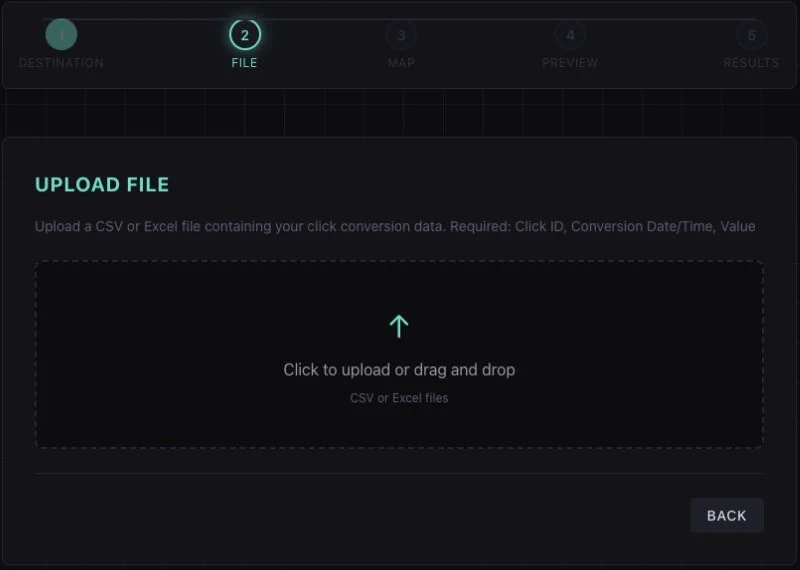
Drag and drop your CSV or Excel file. TUOCA reads the headers and shows a preview of your data.
No row limit. The file is parsed client-side before upload — you see your data instantly. Supports .csv, .xlsx, and .xls formats.
Map Your Fields
Match your column headers to the platform's required fields. The mapper auto-detects common names like "gclid", "email", and "phone".
Required fields are highlighted. Optional fields (conversion value, currency) shown separately. Unmapped columns are safely ignored.
Preview & Validate
See exactly what will be uploaded. Validation catches errors before submission: missing GCLIDs, invalid dates, malformed email hashes.
Errors are highlighted row-by-row with specific messages. Fix in your file and re-upload, or proceed with valid rows only.
Upload & Results
TUOCA uploads your data in batches via the platform's official API. Every record's outcome is logged: success, failure, or skipped.
See total uploaded, failed (with error messages), and deduped. Export the results log for your records. Failed rows can be retried.
Every Conversion Type Supported
Click conversions, call conversions, and Enhanced Conversions — all through one wizard.
Click Conversions
Upload conversions tied to a specific ad click using the platform's click ID (GCLID, MSCLKID, FBCLID, TTCLID).
Call Conversions
Upload phone call conversions using the caller's phone number and call start time. Google matches to forwarding calls.
Enhanced Conversions
Upload conversions using hashed PII (email, phone, name, address) for broader matching when click IDs aren't available.
The Upload Wizard in Action
After selecting a destination, add your CSV or Excel file. The wizard shows the remaining mapping, preview, and results steps.
Historical Backfill in Minutes
The scenario: A marketing agency just signed up for TUOCA. They have 6 months of conversion data in their CRM that Google Ads has never seen. Without this data, Smart Bidding has no signal to optimize against.
The solution: Export the conversion history from their CRM as a CSV. Open the upload wizard:
- Step 1: Select the client's Google Ads account and the "Offline Lead" conversion action
- Step 2: Drag and drop the 2,400-row CSV file
- Step 3: Map "click_identifier" → GCLID, "close_date" → Conversion Time, "deal_value" → Conversion Value
- Step 4: Preview catches 87 rows with expired GCLIDs (>90 days old) — these are flagged but don't block the rest
- Step 5: Upload completes: 2,313 successful, 87 skipped (expired), 0 failed
The result: Google Ads now has 6 months of conversion history with real revenue values. Smart Bidding immediately begins optimizing for higher-value conversions. The entire process took 8 minutes.
What the Wizard Handles Automatically
PII Hashing (SHA-256)
Prepare email addresses and phone numbers with SHA-256 hashing for supported Enhanced Conversion uploads.
Deduplication
Hash-based dedup prevents uploading the same conversion twice. Re-upload a file and TUOCA skips records that were already sent.
Date Normalization
Dates are automatically converted to the platform's required format. Supports ISO 8601, US format, European format, and Unix timestamps.
Phone Formatting (E.164)
Phone numbers are automatically normalized to E.164 international format before hashing. No need to reformat "(555) 123-4567" to "+15551234567".
Manual Upload Questions
The upload wizard accepts CSV (.csv) and Excel (.xlsx,.xls) files. Drag and drop or browse to select your file. There's no row limit — TUOCA handles files of any size by batching uploads automatically.
Not perfectly. The field mapping step lets you match your column headers to the platform's required fields, regardless of what your columns are named. TUOCA also auto-formats dates, phone numbers (E.164), and applies SHA-256 hashing for Enhanced Conversions — so you don't need to pre-process your data.
The wizard supports click conversions (GCLID, MSCLKID, FBCLID, TTCLID), call conversions (caller ID matching), and Enhanced Conversions (hashed email, phone, name, address). You select the conversion type in Step 1 and the wizard adjusts the required fields accordingly.
The results step shows per-record status: each row is marked as success, failure (with the specific error message from the platform), or skipped (duplicate). You can export the error report and fix only the failed rows without re-uploading the entire file.
Yes — the manual upload wizard is the core feature of the Free tier. You can upload CSV/Excel files to any supported ad platform with 1 connection. This is the easiest way to try TUOCA before committing to automated relays.
Absolutely. The most common use case for manual uploads is historical backfill — uploading past conversion data that predates your TUOCA account. Export conversions from your CRM or call tracking platform, upload via the wizard, and backfill months of conversion data in minutes. GCLIDs are valid for 90 days; Enhanced Conversions have a 63-day window.